
In my previous guide, How Often Should You Update WordPress (and Why It Matters), I discussed why keeping WordPress, plugins, and themes up to date is essential for your website’s security, performance, and reliability.
Why Do Updates Sometimes Break Websites?
Your website may rely on dozens of plugins and a theme, all created by different developers. They generally work together very well, but occasionally one piece of software isn’t ready for the latest version of another.
Common causes include:
- An outdated plugin that’s no longer maintained.
- A theme that isn’t compatible with the latest version of WordPress.
- Two plugins that conflict after one of them is updated.
- Custom code that no longer works after an update.
But what happens when an update doesn’t go as planned?
While it’s uncommon, updates can occasionally cause unexpected issues. A page may stop working, a feature may disappear, or your website may display an error.
The good news is that these problems are usually fixable. Here’s what to do if it happens to you.
First, Don’t Make Things Worse
When a website breaks, it’s natural to start clicking buttons and trying random fixes.
Unfortunately, that’s often how a small problem becomes a much bigger one.
Avoid updating more plugins, reinstalling WordPress, or making other major changes until you understand what happened. Every additional change makes it harder to identify the original cause.
Instead, take a moment to determine exactly what changed.
Pro Tip: When troubleshooting an update issue, change one thing at a time. This makes it much easier to identify which update caused the problem.
Before You Panic, Check the Basics
Sometimes nothing is actually broken. Your browser or website cache may simply be displaying an outdated version of a page.
Start by opening your website in a private browser window or refreshing the page. If the problem persists, clearing your website cache may help. If you use Cloudflare or another CDN, its cache may also need to be cleared.
You’d be surprised how often this resolves the problem.
Try to Identify What Went Wrong
Before attempting a fix, try to narrow down the problem.
Did the issue appear immediately after updating a particular plugin? Is the entire website affected, or is the problem limited to one page or feature?
If you updated several plugins at once, identifying the cause may be more difficult.
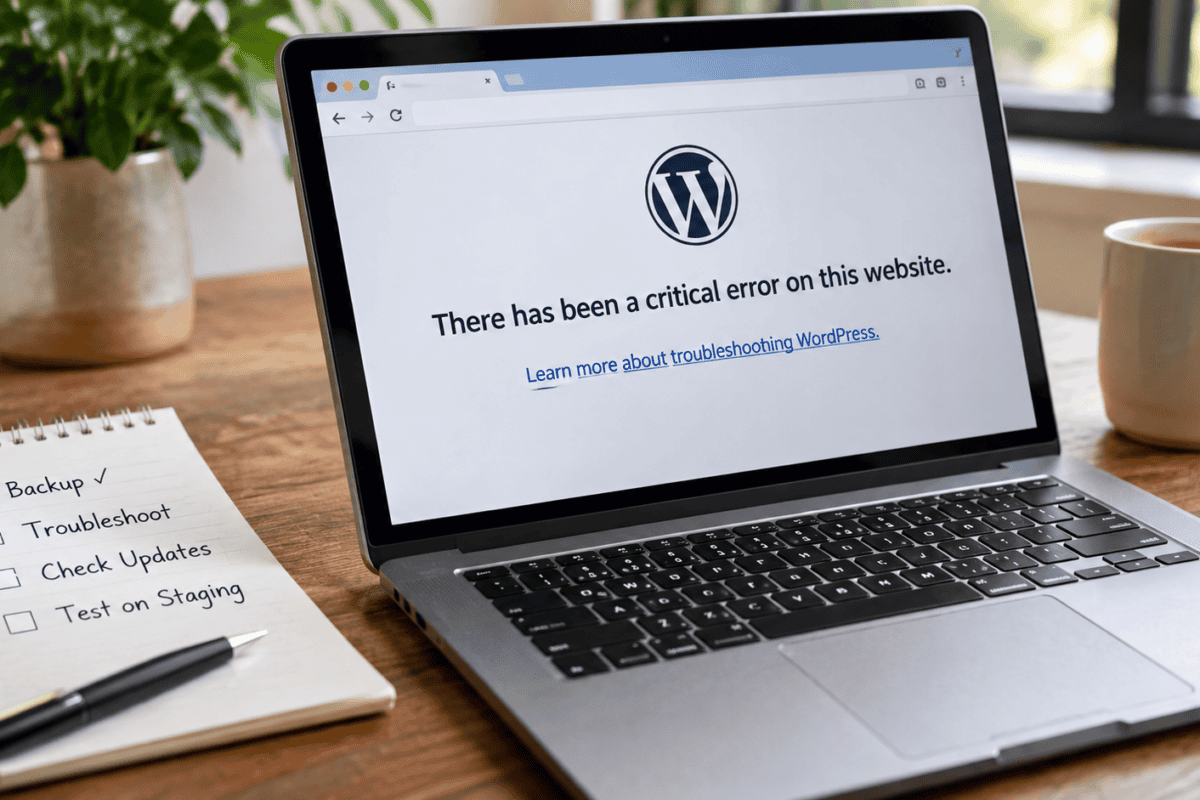
If your website displays a critical error, check your administrator email. WordPress has a built-in recovery feature that may send you a special link to access your dashboard and investigate the problem.
Make a note of any error messages and which parts of the website aren’t working. This information can be especially helpful if you need to contact your hosting provider or reach out to WPRx for assistance.
A Backup Is Your Best Friend
This is exactly why backups matter.
If an update causes a serious issue, a recent backup gives you a way to get back to a known working version. Depending on the problem, restoring the backup may be the fastest solution, but it isn’t always the first thing you should do. If your website has received new orders, form submissions, or other important data since the backup was created, restoring it could mean losing that information.
Of course, restoring a backup doesn’t solve the underlying problem. It simply gets your website back online while you investigate the issue properly.
That’s why it’s important to have a current backup before making updates and to test potentially disruptive changes on a staging site whenever possible.
Troubleshoot On A Staging Site
If an update causes a problem, a staging site gives you a safe place to investigate without making additional changes to your live website.
If everything works as expected on staging, the same updates can then be applied to the live site.
Staging sites are the best way to test updates before they’re installed on your live website. It’s one of the simplest ways to reduce the risk of unexpected downtime.
Don’t Let One Bad Experience Stop You
One of the biggest mistakes website owners make is avoiding updates because something broke once.
Unfortunately, that creates a much bigger problem.
Outdated plugins and themes can leave known security vulnerabilities on your website. Delaying updates for months, or even years, dramatically increases your security risk.
The goal isn’t to stop updating.
The goal is to update regularly and safely.
How WPRx Helps
At WPRx, we take a careful approach to WordPress updates. We make sure backups are available, apply updates regularly, and check for problems afterward. When an update requires additional testing, we can use a staging site to identify potential issues before they affect your live website.
And if something does go wrong, we’re here to troubleshoot the problem and get things working again.
That means you get the security benefits of staying up to date without worrying about whether the next update will take your website offline.
With a good backup strategy, proper testing on a staging site, and a careful update process, most update-related problems are preventable and recoverable.
If you’d rather spend your time running your business than worrying about WordPress updates, WPRx is here to help.